How to manage my subscription
In addition to purchasing credit top-ups, you can also add user seats to your plan (if on a Team plan), change your billing cycle, download invoices, or cancel your subscription in the same area. That is within the billing area. Firstly, navigate to that page by clicking this link or selecting "Your Account" in your Konvart dashboard, then click on "Subscription info".
How to change the plan
Upon entering the billing page, you should be on the "Current plan" tab, as shown in the screenshot above. To change your plan, click "Change plan" and select a different plan by clicking the "Upgrade plan" or "Downgrade plan" button, depending on which shows up for you.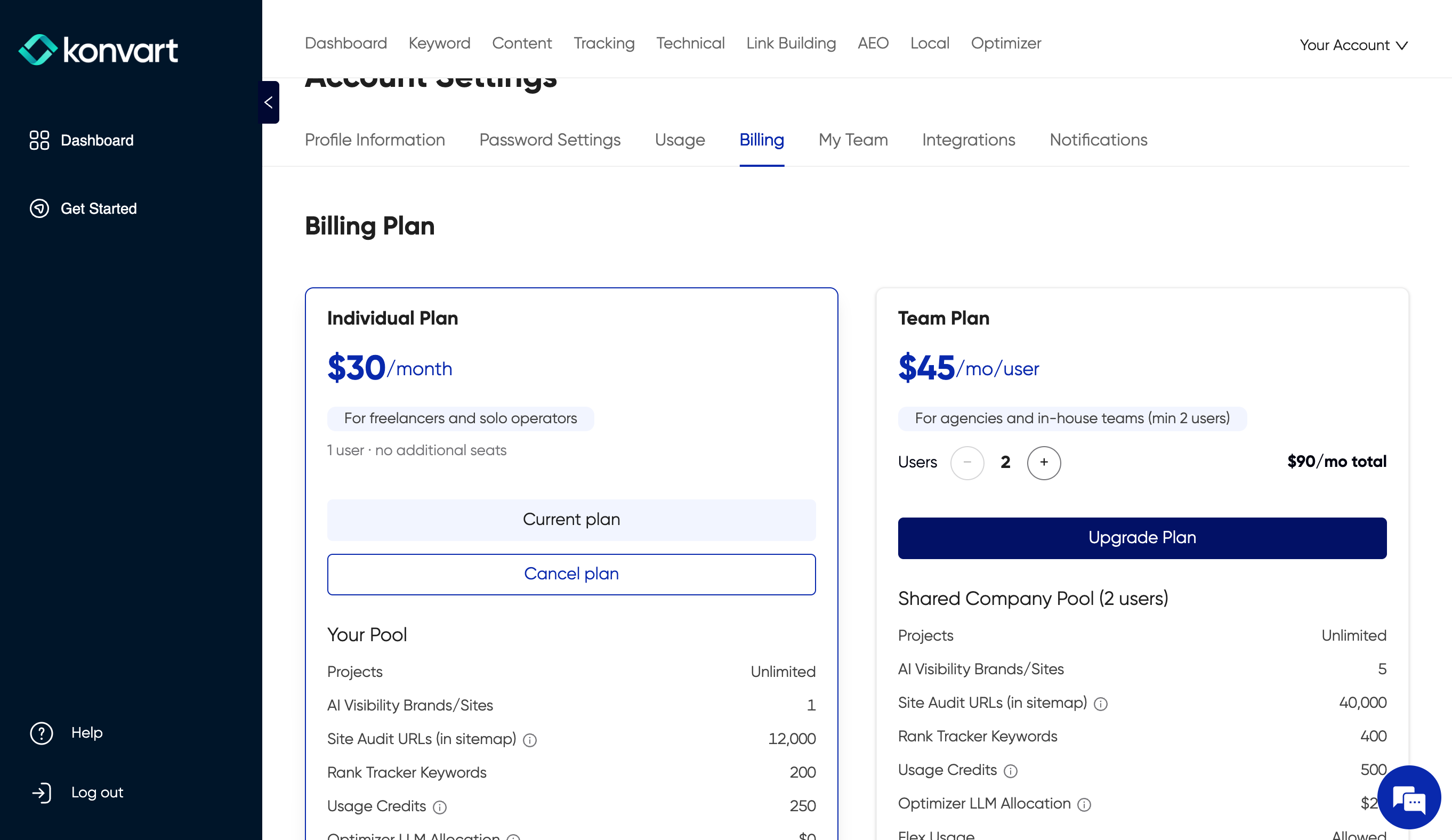
Plan upgrades are processed immediately with a prorated charge, and you get access to the new plan's features right away.
Plan downgrades are processed at the end of your current billing period. For example, downgrading from Team to Individual means your Team plan remains active until the end of your current billing period. On your next billing date, you will be charged for the Individual plan and switched to it. Until the downgrade takes effect, you retain access to features on the Team Plan.
How to change the billing period
On the billing page, you should see a switch button. The text on that button depends on your current billing cycle. If you are on a monthly cycle, you should see "Switch to annual cycle," and if you are on an annual cycle, you should see "Switch to monthly cycle."
When you click on the button, you should see a modal with details regarding your plan. That is how much is due today and how much would be paid on the next billing date.
A switch from monthly to yearly is charged now at a prorated rate.
A switch from annual to monthly is made effective at the end of your current annual billing period. At the end of the annual billing period, you are switched to a monthly plan and charged for a month.
How to add/remove user seats
You can invite new users to your plan as long as you have valid user seats for them. See this guide for inviting and managing team members.
You can only purchase additional seats if you are on a Team plan. To purchase additional seats, go to the billing area and click on "Manage seats"
You can add or remove as many seats as you need using the + or – buttons. When you choose to add seats, you are charged for the new seat at a prorated rate and should be able to preview the charge on the modal. When satisfied, click on the "Update seats" button.
How to download invoices
Invoices are sent to your email for every transaction. To download them, go to the billing area and select the "invoices & payment method" tab.
Then click "Download invoice" next to the invoice you want to download.
How to change your payment method
You can change your payment method on the same screen. Click on "Invoices & Payment Method," then click on "Update payment method"
How to cancel your plan
We would hate to see you go. If you're considering canceling your plan, please email us at support@konvart.com before you do that, so we can resolve the issue.
That said, you can cancel your subscription from your Konvart dashboard in the billing area. On the billing page, click on "Change plan"
Then, within your current plan card, click on "Cancel plan".
Confirm your cancellation, and it will be effective at the end of your current billing period. That means if your current subscription is set to end on the 30th of August, it will end on that date, and you will not be charged. Until the end of your current subscription, you can continue to use Konvart's features. If you do not want to continue using Konvart until the end of your current billing period, contact us to see whether you qualify for a refund under our terms of service.